IPTV on Smart TV: Complete Setup Guide for LG, Samsung, Sony (2025)
IPTV on Smart TV: Complete Setup Guide for LG, Samsung, Sony (2025)
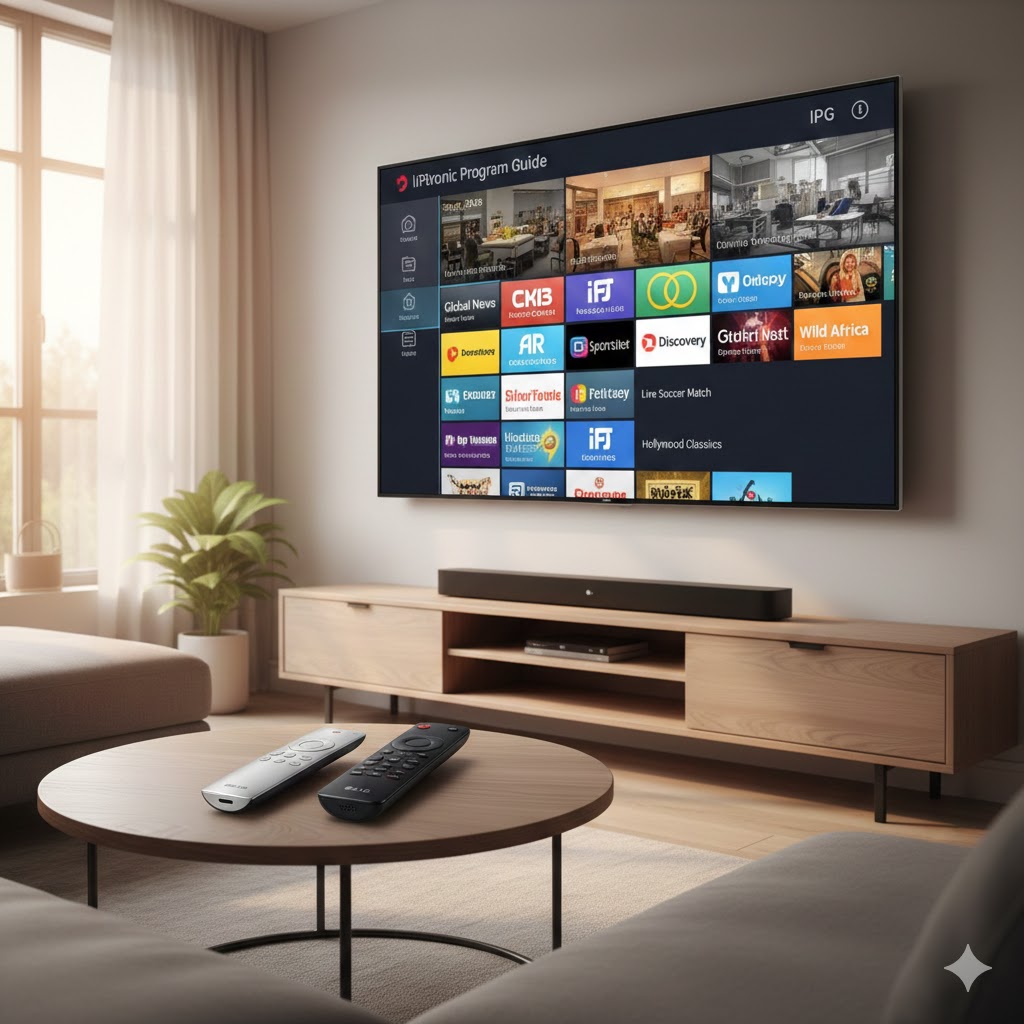
Setting up IPTV on Smart TV screens is the ultimate goal for most cord-cutters. You want that clean, one-remote experience without messy cables or external boxes cluttering your media center. However, depending on whether you own a Samsung, LG, or Sony device, the process changes drastically.
In our testing lab at TheZTV, we've found that while Android-based TVs make it easy, proprietary systems like Tizen (Samsung) and webOS (LG) require specific workarounds. If you don't know which app to pick or how to configure your M3U playlist, you might end up with a blank screen.
This guide walks you through the exact steps to get your smart TV streaming live channels and VOD content in minutes. We will break down the best apps for each operating system and how to optimize your settings for the best picture quality.
Why Smart TV Operating Systems Matter for IPTV
Before we jump into the installation, it is crucial to understand what software runs your TV. This dictates which IPTV apps are available to you.
Unlike your phone or laptop, you cannot just download any file you want. Manufacturers lock down their ecosystems to ensure security and performance.
- Samsung (Tizen OS): Very restrictive. You cannot install standard Android APKs. You must use apps available in the Samsung Smart Hub or use developer mode (advanced).
- LG (webOS): Similar to Samsung. You are limited to the LG Content Store.
- Sony / Hisense / Philips (Android TV or Google TV): The most open platforms. You have access to the Google Play Store and can easily sideload popular players like TiviMate.
If you are unsure about your internet capabilities, check our guide on internet speed requirements for 4K streaming before you begin.
How to Install IPTV on Samsung Smart TVs (Tizen)
Samsung dominates the market, but Tizen OS can be tricky for IPTV users. The native store often removes "grey area" apps. However, a few reliable players remain compliant and work beautifully.
We recommend using IPTV Smarters Pro (if available in your region) or IBO Player.
Step-by-Step Installation
- Connect to the Internet: Ensure your TV is online.
- Open Smart Hub: Press the Home button on your remote.
- Search for the App: Navigate to "Apps" and use the search icon. Type in "Smarters Player Lite" or "IBO Player".
- Install: Select the app and click "Install."
- Launch and Configure: Open the app. You will be asked for your Xtream Codes API login details (Username, Password, and URL) provided by TheZTV.
Pro Tip: If you cannot find these apps in your region's store, you may need to change your TV's region settings to the USA or UK, which often have broader app libraries.
Setting Up IPTV on LG Smart TVs (webOS)
LG's webOS is visually stunning but, like Tizen, it doesn't support Android apps. Fortunately, the LG Content Store has embraced several high-quality IPTV players that handle EPG (Electronic Program Guide) data very well.
Best Method: IPTV Smarters Pro or SS IPTV
In our recent tests on an LG C3 OLED, IPTV Smarters Pro offered the smoothest navigation.
- Access LG Content Store: Press the Home button and select the Store icon.
- Search: Type "IPTV Smarters Pro" in the search bar.
- Download: Click install. It is a small file and should finish quickly.
- Input Details: Once opened, select "Login with Xtream Codes API."
- Enter Credentials: Input the server URL, username, and password sent to your email.
If Smarters isn't working for you, SS IPTV is a solid backup. It is slightly more technical to set up but is very lightweight and fast on older LG models.
The Easiest Setup: Sony and Android TV
If you own a Sony Bravia, a newer Philips, or a Hisense model running Android TV, you are in luck. You have the best ecosystem for IPTV smart TV usage.
Because these TVs run Android, you can install the gold standard of players: TiviMate.
Installing TiviMate on Android TV
- Open Google Play Store: Navigate to the store from your home screen.
- Get Downloader: Search for the app called "Downloader by AFTVnews" and install it.
- Enable Permissions: Go to Settings > Apps > Security & Restrictions > Unknown Sources. Turn this ON for the Downloader app.
- Download TiviMate: Open Downloader and enter the shortcode for TiviMate (often found on their official Reddit or via a quick Google search) or type the direct URL.
- Install and Setup: Click install. Open TiviMate, click "Add Playlist," and enter your TheZTV credentials.
For a deeper dive into player options, read our review of the best IPTV apps for 2025.
App Compatibility Comparison
To help you decide which route to take, here is a breakdown of the top players available natively on each platform.
| Feature | Samsung (Tizen) | LG (webOS) | Sony (Android TV) |
|---|---|---|---|
| Top Recommended App | IBO Player / Smarters | IPTV Smarters Pro | TiviMate |
| Sideloading Support | No (Difficult) | No | Yes (Easy) |
| EPG Support | Good | Excellent | Best in Class |
| 4K Playback | Native Support | Native Support | Native Support |
| Setup Difficulty | Medium | Medium | Easy |
Troubleshooting Playback Issues
Even on high-end TVs, you might encounter buffering or audio sync issues. This is rarely the TV's fault; it is usually a network or software configuration issue.
Change Your Media Player Format
If you have video but no audio, or if the stream stutters, change the decoder engine inside your app.
- In Smarters, go to Settings > Player Settings > select Hardware Decoder.
- In TiviMate, try switching between ExoPlayer and VLC if you have it installed.
Clear App Cache
Smart TVs have limited RAM. If you have been streaming for hours, the cache fills up.
- Samsung: Hold the power button on your remote until the TV restarts (soft reset).
- Android TV: Go to Settings > Apps > [Your App] > Clear Cache.
Hardwire Your Connection
Wi-Fi chips in Smart TVs are notoriously weak compared to phones. We always recommend using an Ethernet cable directly from your router to the TV to ensure stable data flow for high-bitrate FHD and 4K channels.
When to Use an External Device
Sometimes, the built-in hardware on a Smart TV just isn't enough. TV processors are designed for image processing, not necessarily for decoding heavy IPTV streams with massive EPG databases.
You should consider switching to an external device (like a Fire Stick 4K or NVIDIA Shield) if:
- The UI is Laggy: Browsing the channel list takes seconds to load.
- App Crashes: The app closes itself randomly.
- Limited Updates: Your TV is more than 4-5 years old and apps are no longer being updated.
Using a dedicated stick often provides a snappier experience and access to better apps like TiviMate, which isn't available on Tizen or webOS.
FAQ: IPTV on Smart TV
Can I use a VPN on my Smart TV?
Yes, and you should. Android TVs support VPN apps directly. For Samsung and LG, you cannot install a VPN app directly on the TV easily. You will need to configure the VPN on your router or use a DNS proxy service.
Why can't I find IPTV Smarters on my Samsung TV?
Samsung removed the app from the store in many regions. If you cannot find it, try changing your TV's region to the USA or use an alternative like IBO Player or Set IPTV.
Is it better to use Wi-Fi or Ethernet?
Ethernet is always superior. It eliminates interference and packet loss, which are the main causes of buffering on live streams.
Do I need a specific remote?
No, your standard TV remote works fine. However, apps like TiviMate are optimized for standard D-pad navigation, making the experience very intuitive.
Conclusion
Setting up IPTV on Smart TV platforms like LG, Samsung, and Sony has never been more accessible. While Android TV offers the most flexibility, Tizen and webOS users still have access to robust apps that deliver a premium viewing experience.
Remember to start with a stable internet connection and choose the right app for your operating system. Once configured, you'll have thousands of channels at your fingertips without the hardware clutter.
Ready to transform your TV viewing experience? Start your free trial with TheZTV today and test these setups yourself.