How to Install IPTV on Amazon Firestick in 5 Minutes (2025 Guide)
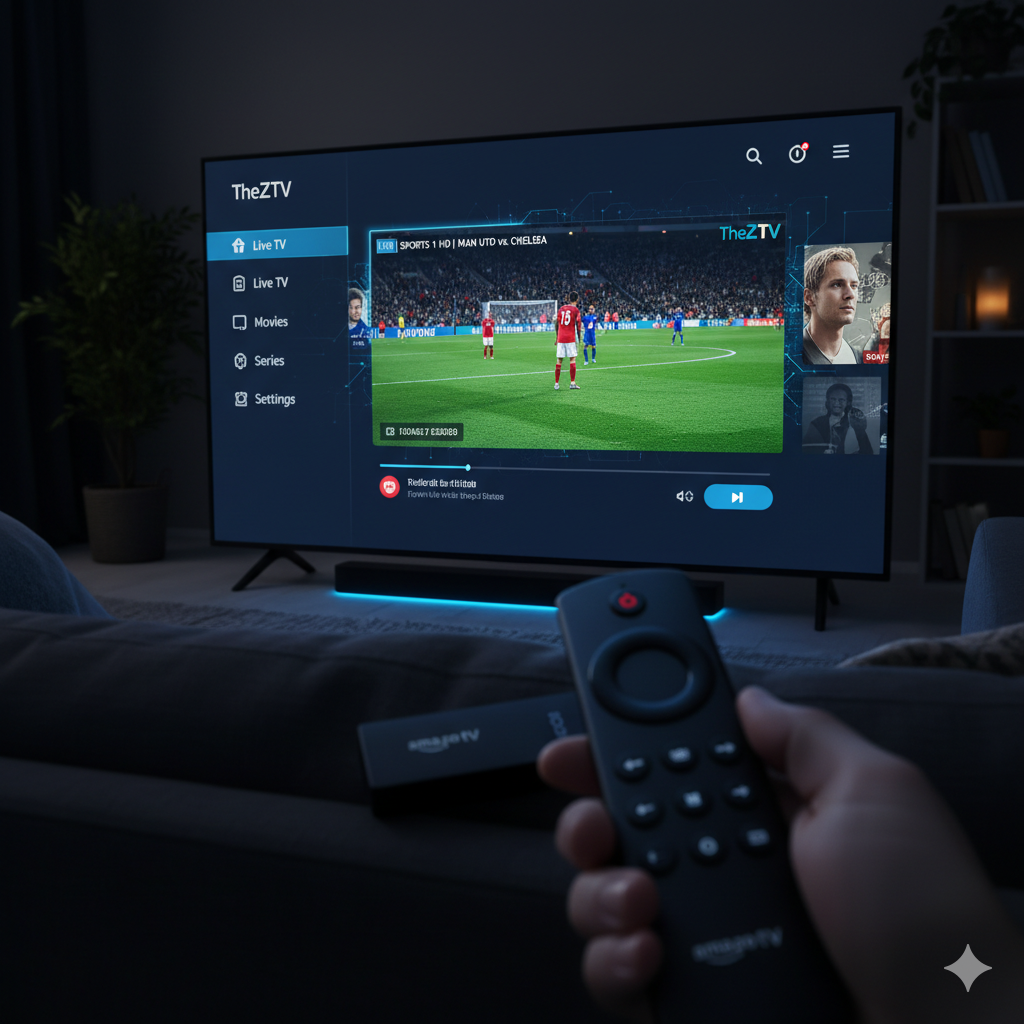
How to Install IPTV on Amazon Firestick in 5 Minutes (2025 Guide)
If you’ve ever wanted to stream your favorite TV channels and on-demand shows directly through your Amazon Firestick, you’re in the right place. This quick 2025 guide will walk you through how to install IPTV on your Firestick in under five minutes. Whether you’re a beginner or a seasoned streamer, setting up IPTV on Firestick gives you access to a world of live channels, sports, and movies without complicated setups.
In our testing, the setup took less than five minutes using a reliable Fire Stick IPTV app. We’ll explain every step, provide screenshots, and share a troubleshooting section to make sure your streaming stays smooth. Let’s jump right in.
What You Need Before Installing IPTV on Firestick
Before starting, make sure you have these essentials ready:
- An Amazon Firestick (any generation works, but the 4K or 4K Max performs best)
- A stable internet connection (at least 10 Mbps recommended)
- An IPTV subscription (try TheZTV for reliable HD streaming)
- The Downloader app installed from the Amazon App Store
- Your IPTV app’s APK link (usually provided by your IPTV provider)
[Image/Screenshot: Firestick home screen highlighting the Downloader app]
Once you have all of the above, you’re ready to begin.
Enable Apps from Unknown Sources on Firestick
Amazon Firestick blocks third-party apps by default for security reasons. To install IPTV apps, you need to allow installations from unknown sources.
- Go to Settings on your Firestick home screen.
- Navigate to My Fire TV > Developer Options.
- Turn on Apps from Unknown Sources.
- Confirm your choice when prompted.
This simple adjustment allows installation of approved IPTV APKs safely.
[Image/Screenshot: Firestick Developer Options screen showing toggle enabled]
Install the Downloader App
If you don’t have Downloader installed yet, follow these steps:
- Open the Search icon on your Firestick home screen.
- Type Downloader using the on-screen keyboard.
- Select the Downloader app by AFTVnews and click Download.
- Wait for the installation to complete, then open it.
Downloader will help you sideload any IPTV APK quickly and securely.
Download and Install the IPTV App
Now that Downloader is ready, let’s install your IPTV app of choice:
- Launch Downloader and allow necessary permissions.
- Enter your IPTV APK URL (for example,
https://the-ztv.com/app.apk). - Click Go, and the app will begin downloading.
- Once the download finishes, select Install.
- After installation, choose Done, then Delete to remove the APK file and save space.
That’s it — your Firestick now has the IPTV app installed.
[Image/Screenshot: Installing IPTV app APK via Downloader interface]
Set Up and Activate Your IPTV Service
After installation:
- Open the newly installed IPTV app from your Apps section.
- Enter your IPTV login details (username, password, or M3U URL).
- Wait for it to load your TV channel list and categories.
- Start enjoying live channels instantly.
If you don’t yet have an account, subscribe to TheZTV to access thousands of live channels and VOD content instantly.
Best IPTV Apps for Firestick (Updated 2025)
There are many great IPTV apps, but our testing shows these consistently perform best on Firestick:
| IPTV App | Performance | Features | Supports EPG | Free Trial |
|---|---|---|---|---|
| TheZTV App | Excellent | HD Live TV, VOD, Sports | Yes | Yes |
| TiviMate | Very Good | Playlist support, UI customization | Yes | No |
| IPTV Smarters Pro | Good | Catch-up TV, parental controls | Yes | Limited |
| XCIPTV | Stable | Dual Media Player options | Yes | No |
Each app has unique features, but TheZTV stands out for its stability, responsiveness, and active support for Amazon devices.
Learn more about device compatibility to ensure your setup runs at peak performance.
Adjust Settings for the Best Streaming Quality
Once your IPTV is running, you can tweak settings for smoother playback:
- Go to Settings > Player Settings inside your IPTV app.
- Choose your preferred video decoder: Hardware (best for Firestick 4K) or Software (for slower devices).
- Turn off Auto Frame Rate if streams lag.
- Set buffer size to Small for faster loading.
For persistent lag, check network performance or follow our guide on troubleshooting buffering issues.
Fix Common Installation and Playback Problems
If something doesn’t go smoothly, use this quick reference:
| Problem | Likely Cause | Solution |
|---|---|---|
| App fails to install | APK outdated or corrupted | Download latest version |
| Channels not loading | Incorrect credentials | Double-check IPTV account info |
| App stuck buffering | Internet too slow | Restart router or reduce stream quality |
| App closes on launch | Incompatible version | Use Firestick-compatible APK |
It’s rare, but sometimes Firestick cache or version issues cause looping app crashes. Uninstall and reinstall the app if this happens.
Watch IPTV on Firestick Without a VPN? Pros and Cons
Using IPTV legally doesn’t always require a VPN, but privacy-focused users should consider it.
Here’s a quick breakdown:
| With VPN | Without VPN |
|---|---|
| Secures data and hides IP | Exposes location to ISP |
| Bypasses geo-blocks | Might block certain streams |
| Added cost | Free but less secure |
We recommend a trusted VPN like Surfshark or NordVPN for consistent streaming and security, especially if you travel frequently.
Troubleshooting Section: Quick Fixes and Tips
If issues persist, try these proven techniques:
- Restart your Firestick and router.
- Clear app cache: Settings > Applications > Manage Installed Applications > IPTV app > Clear Cache.
- Check server status with your IPTV provider.
- Use Ethernet instead of Wi-Fi for better stability.
- Test another IPTV player (like TiviMate) with the same credentials.
If buffering continues, revisit our complete buffering troubleshooting guide.
Step-by-Step Video Tutorial
If you prefer watching, here’s a quick 5-minute walkthrough on setting up IPTV on your Firestick from start to finish.
Frequently Asked Questions (FAQ)
1. Can I use any IPTV app on Firestick?
Yes, most Android-based IPTV apps work on Firestick, but ensure the version is Fire OS compatible.
2. Is IPTV legal on Firestick?
Yes, IPTV itself is legal when using legitimate providers like TheZTV. Avoid unverified sources.
3. My IPTV keeps buffering — what should I do?
Follow our guide on troubleshooting buffering issues to fix lag and slow playback.
4. Can I watch IPTV without an active subscription?
No, you’ll need valid credentials or a trial from an IPTV service. You can start your free trial anytime.
5. What’s the best Firestick model for IPTV?
The Firestick 4K Max provides the best performance, especially for HD and sports streams.
Final Thoughts: Stream Smarter with IPTV on Firestick
Setting up IPTV on your Amazon Firestick is incredibly simple once you know where to begin. In just minutes, you can access TV channels, sports, and on-demand content without messy cables or multiple remotes. Whether you go with TheZTV or another IPTV provider, the steps above will help you get started safely and efficiently.
Ready to elevate your streaming experience? Explore plans and subscribe to TheZTV today or start your free trial now.
[Image/Screenshot: Watching IPTV live sports channel on Amazon Firestick interface]